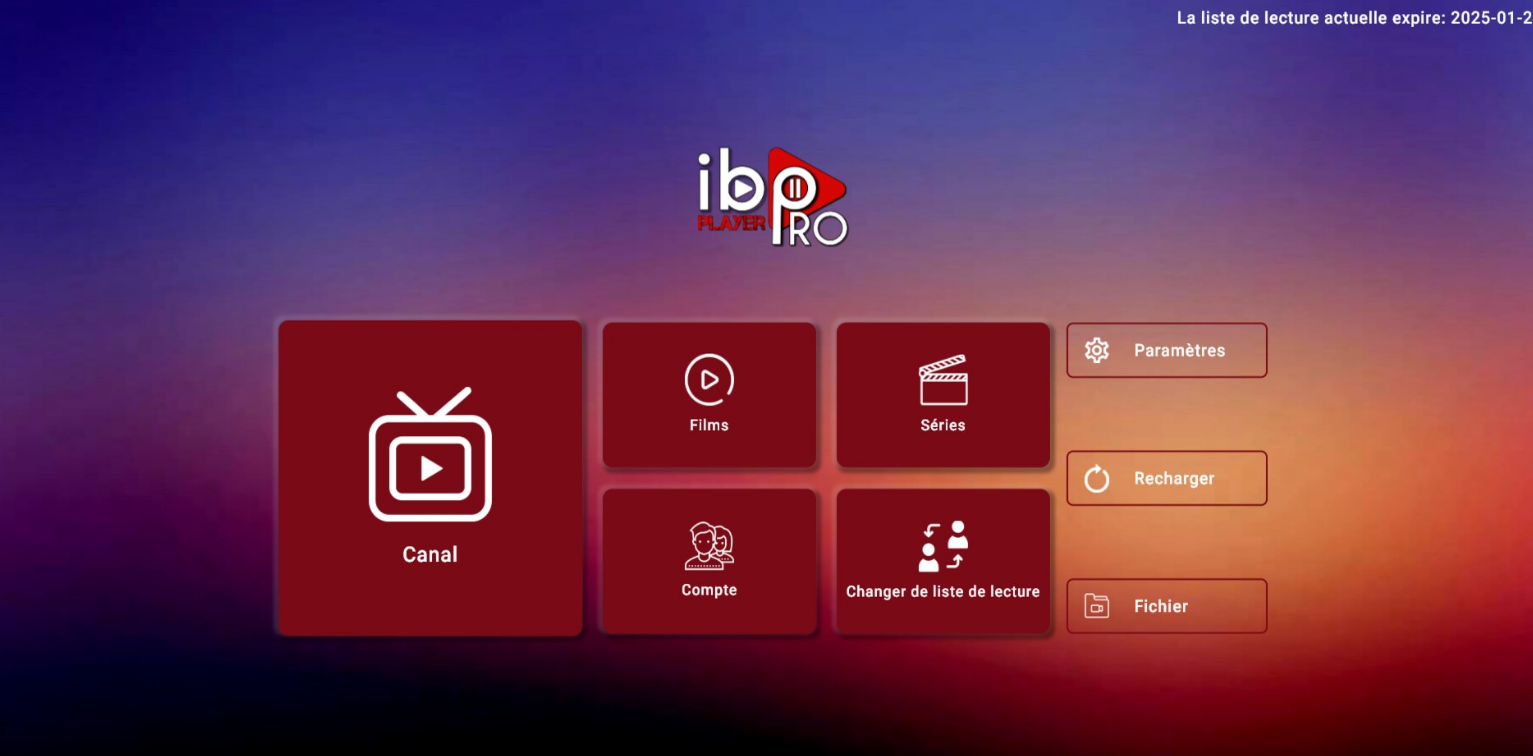
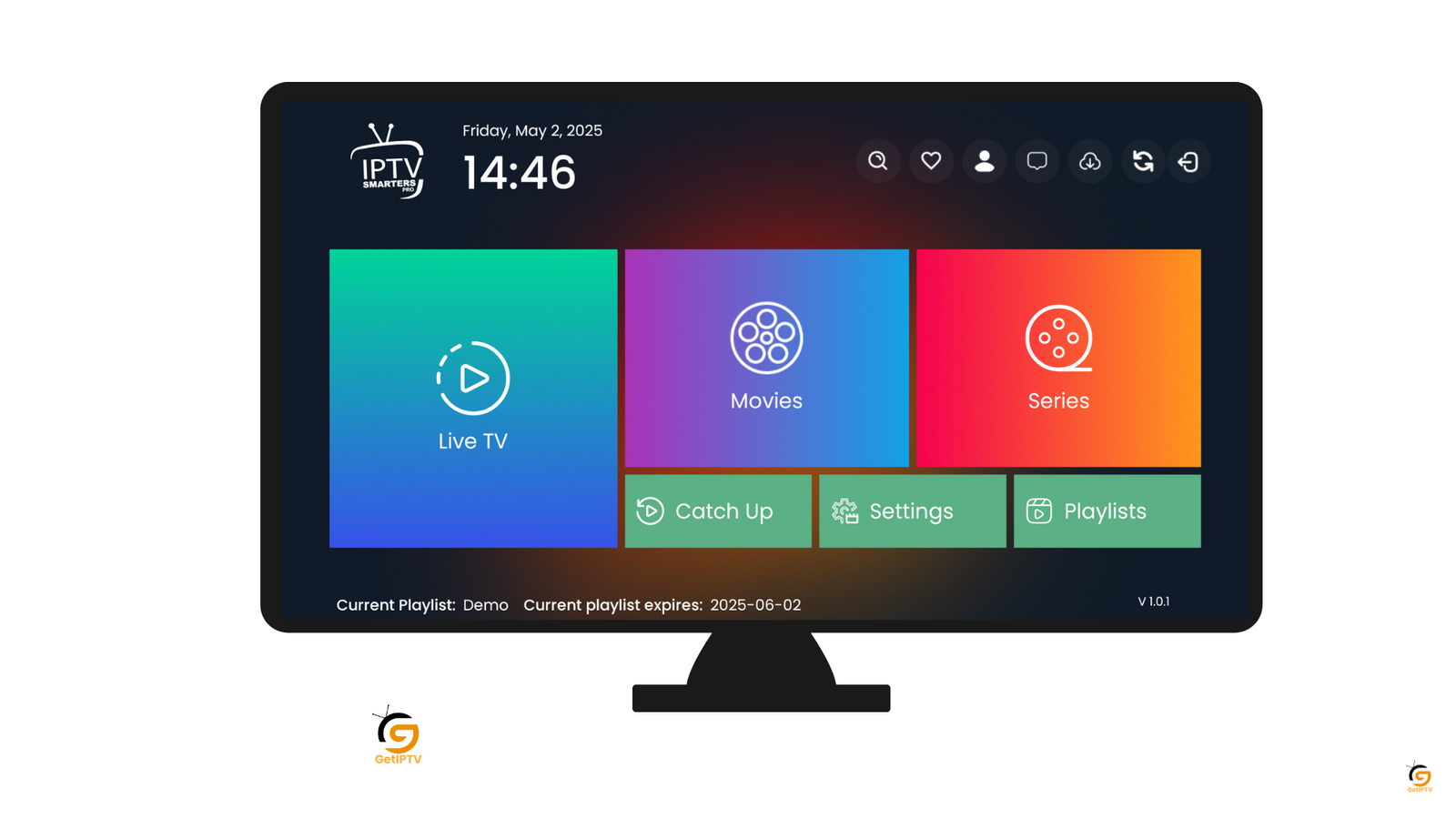
TV
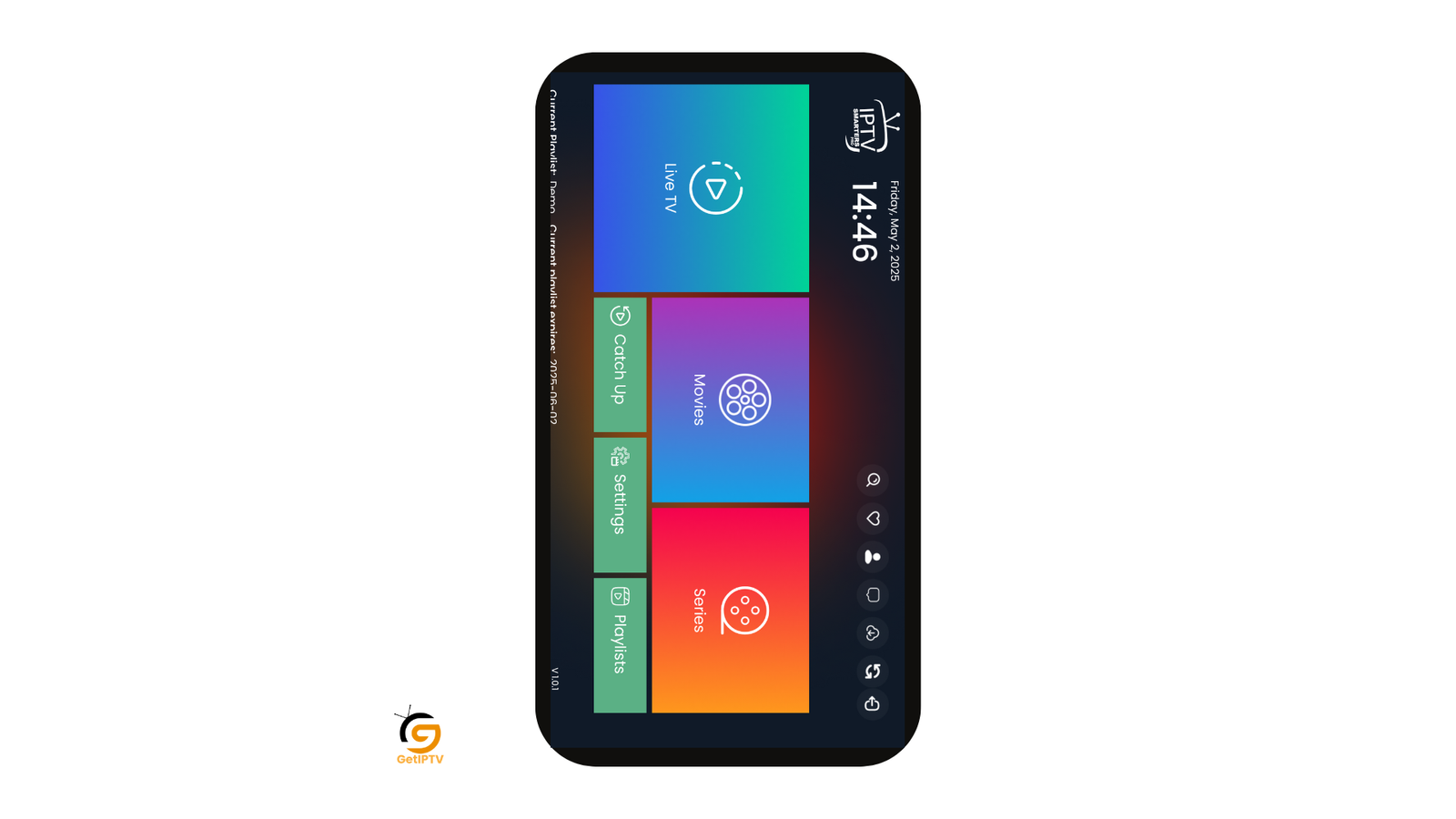
PHONE
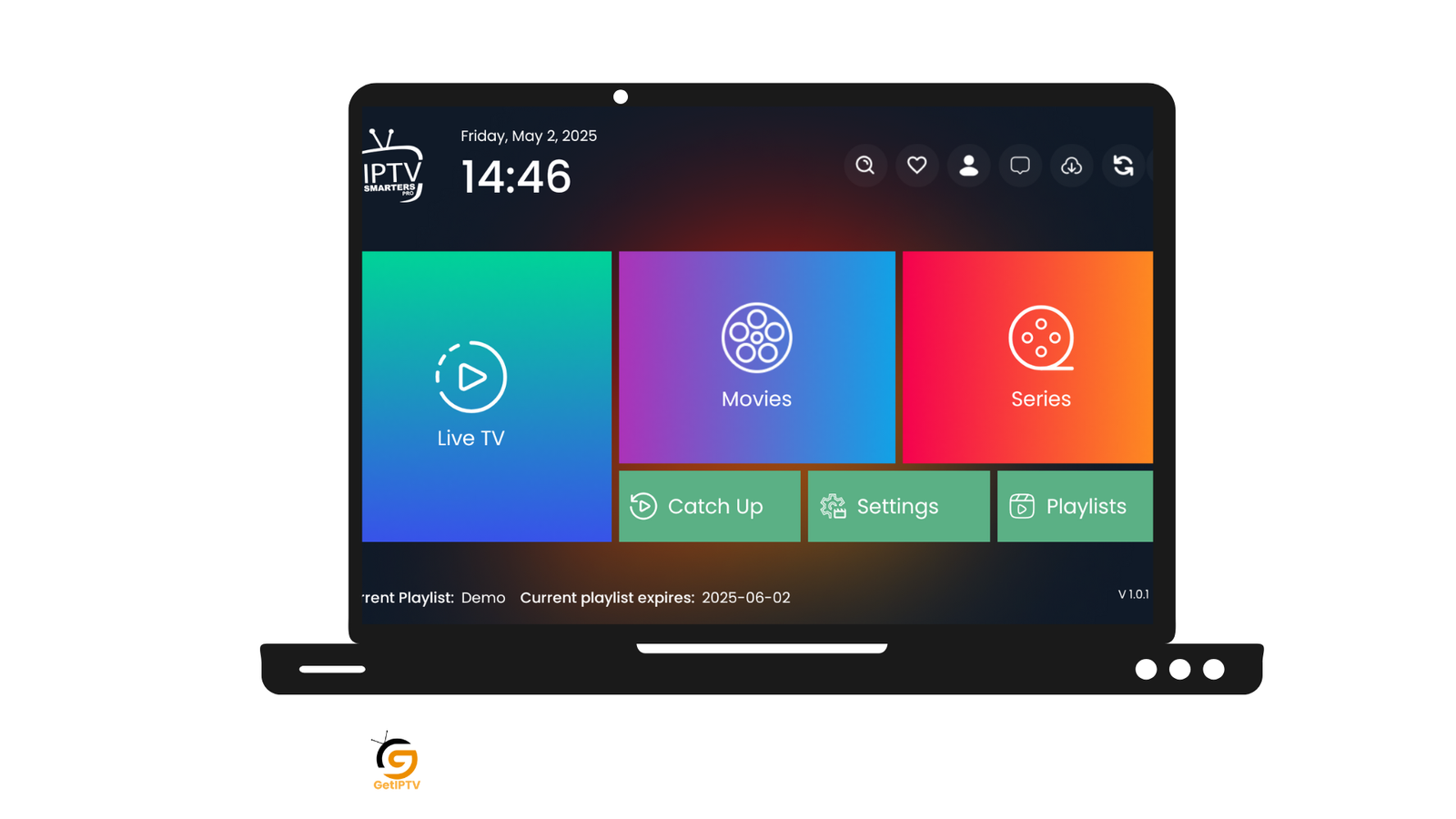
PC
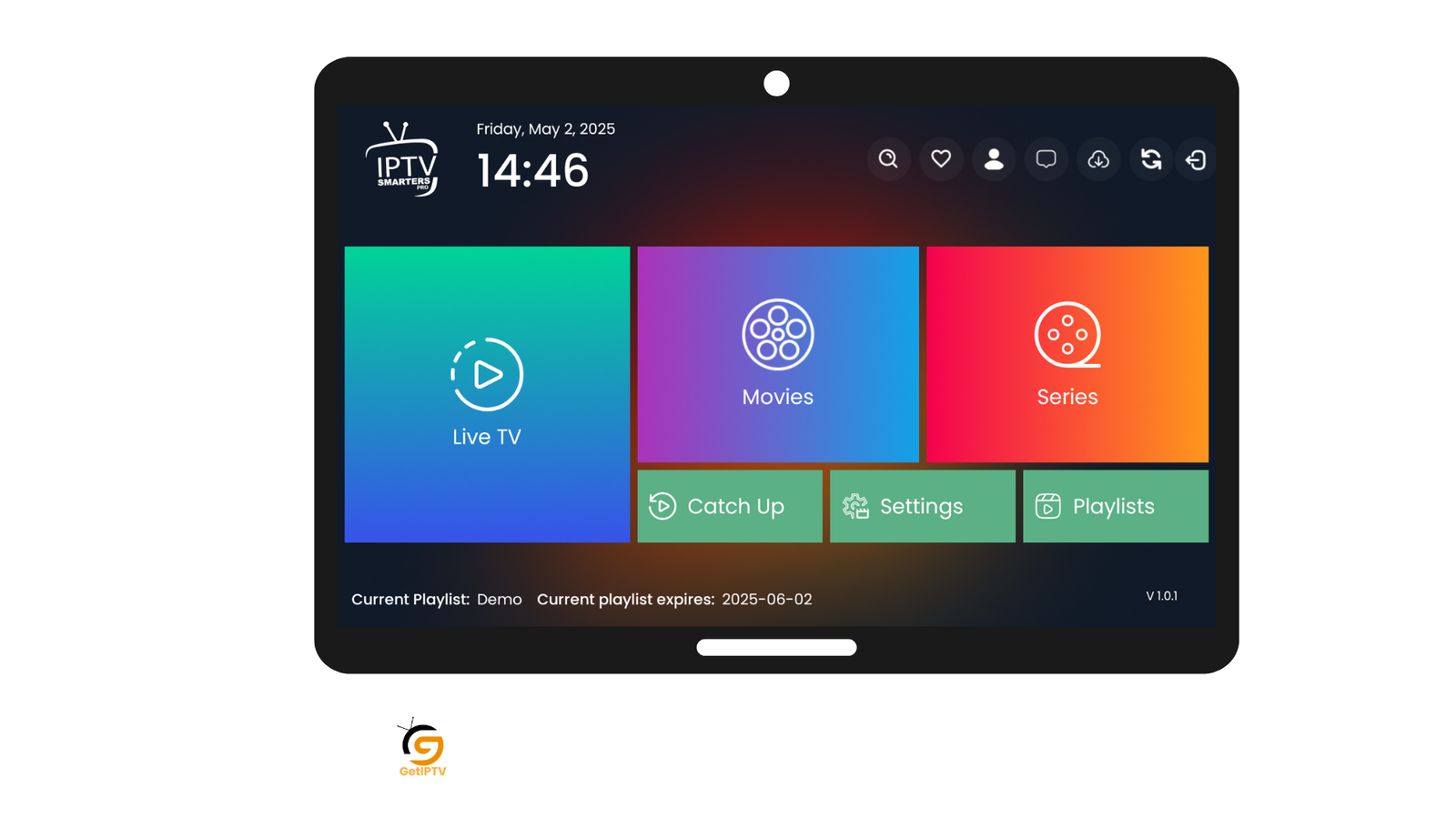
Tablet
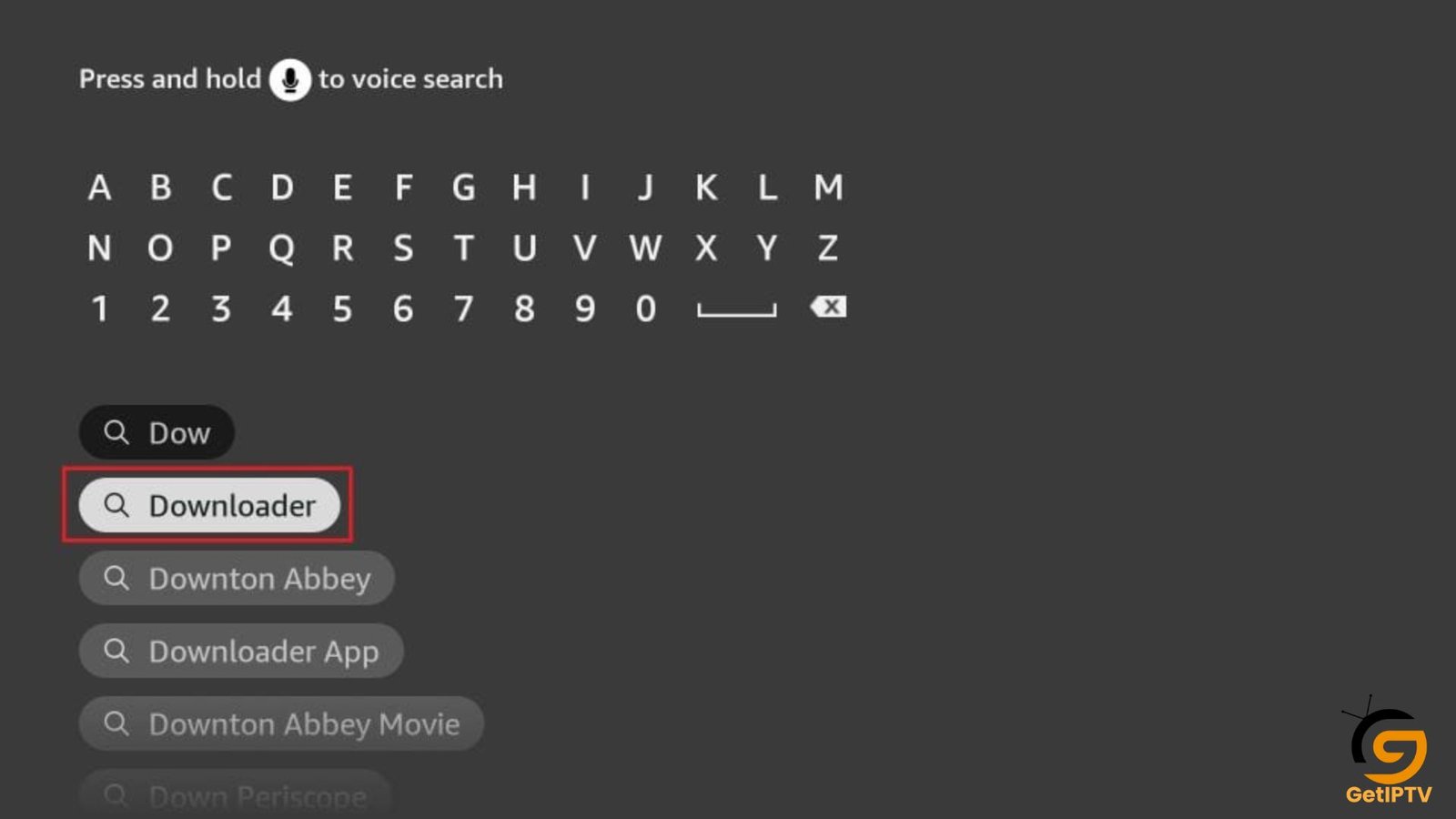
1. Click the Magnifying Glass > Search option on TV home screen. Type Downloader in the search bar. When the Downloader option appears in the search results, click it. On the following screen, choose the Downloader icon to download and install the app.
2. Click Settings>My TV>Developer options.
You will see one of the following two options depending on your TV device version:
- Option 1 (new devices) – Install Unknown Apps: Click it and proceed to the next step to enable Downloader.
- Option 2 (old devices) – Apps from Unknown Sources: Click this option and then click Turn On on the following prompt. Skip the next step.
Now, select TV and click it 7 times to enable Developer Options. If you’re still not sure how to do it, here’s a step-by-step guide to enable developer options.
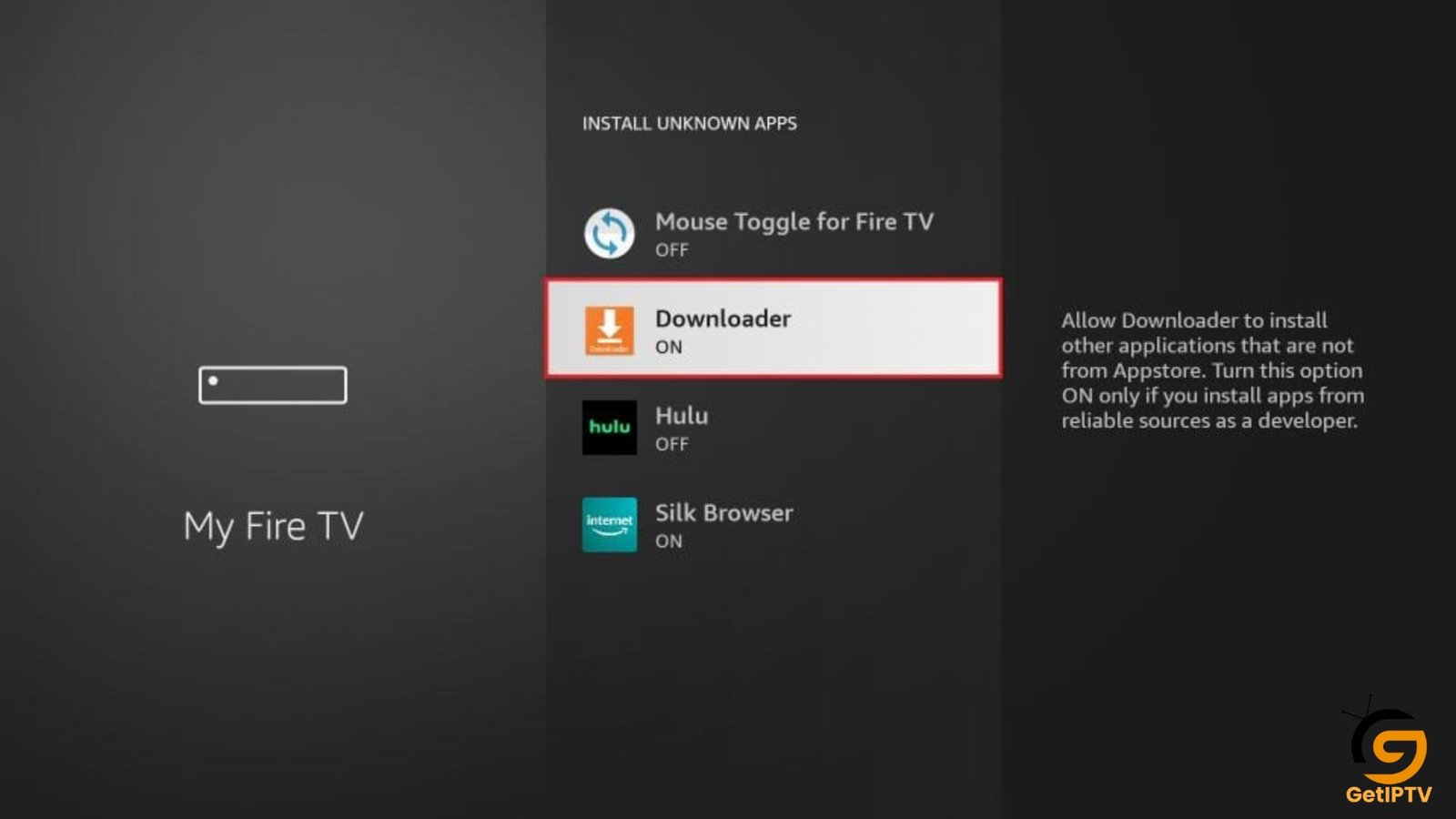
With this, you have configured the TV settings to allow installing IPTV Smarters and other third-party apps.
Sideload IPTV Smarters Pro APK
Here are the steps:
1. Open the Downloader app. Click the URL text box on the right side (make sure the Home option in the left menu is selected).
Note: When you run this app for the first time, a set of prompts will appear. Dismiss them until you see the following screen.
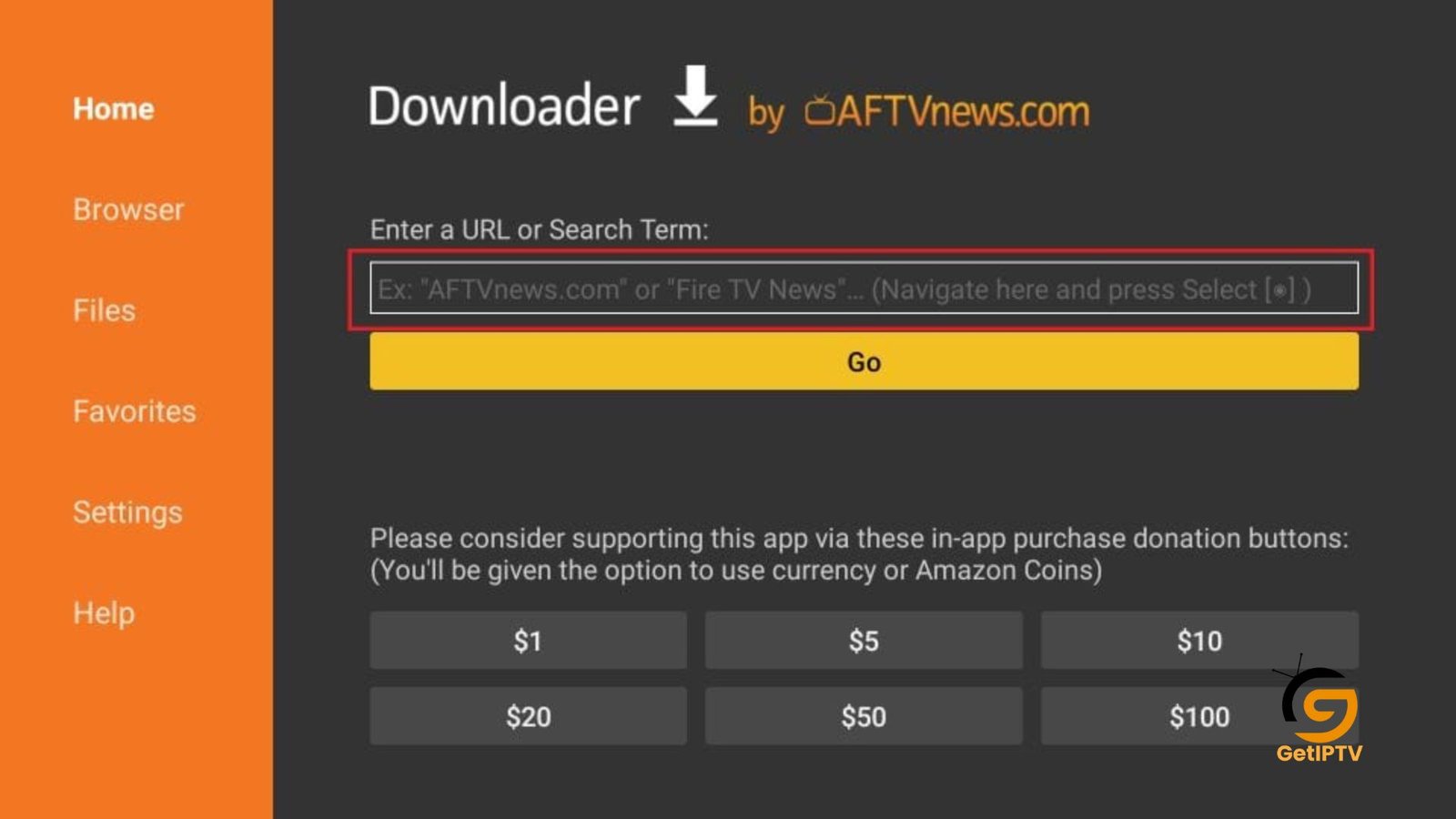
2. Enter the following 224877 and click GO. Then click the download link on the page that loads.
3. Wait a minute or two until the IPTV Smarter downloads onto your device.
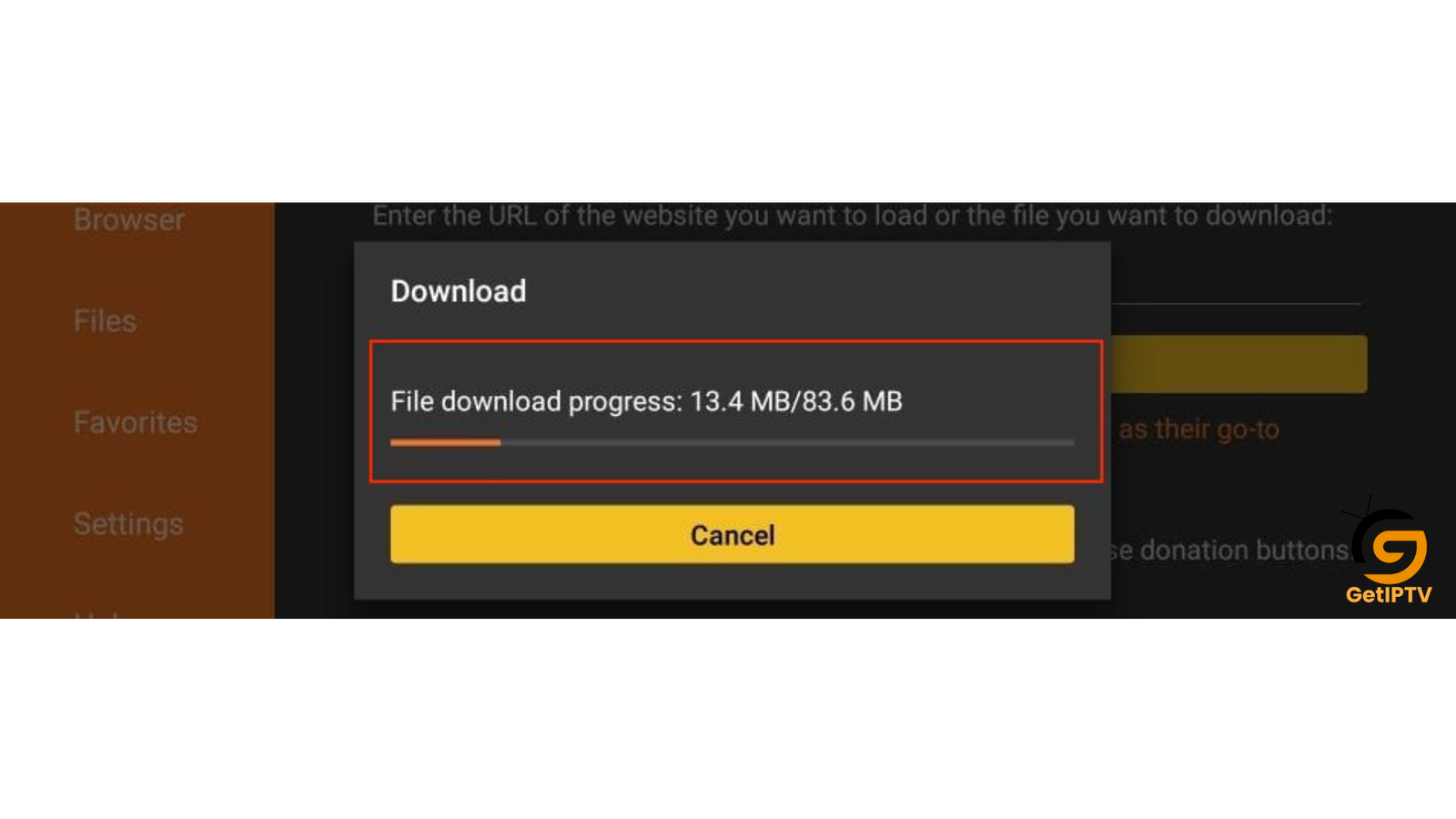
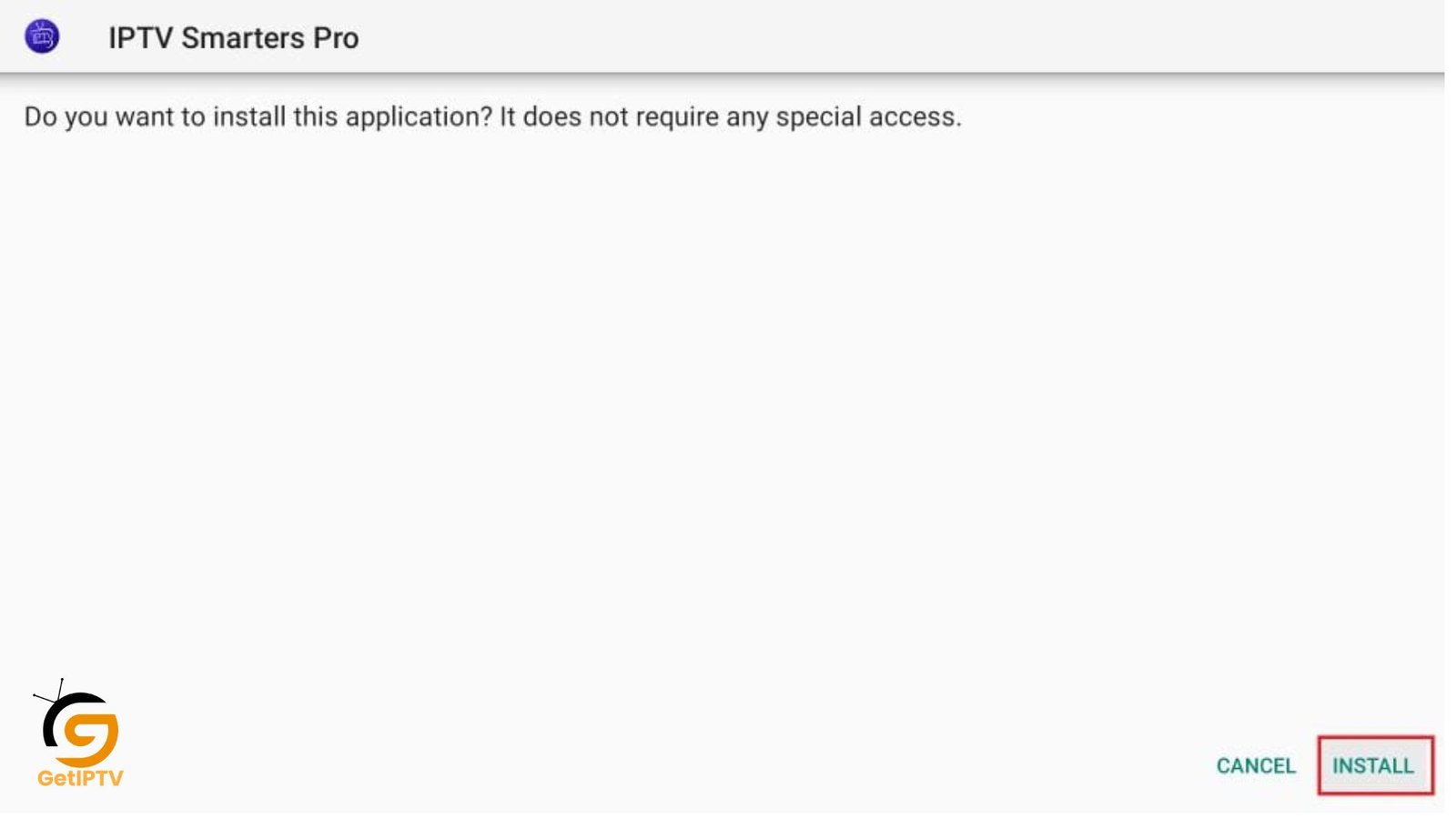
4. After the download is completed, the Downloader app will run the APK file, and the installation will start. Click Install.
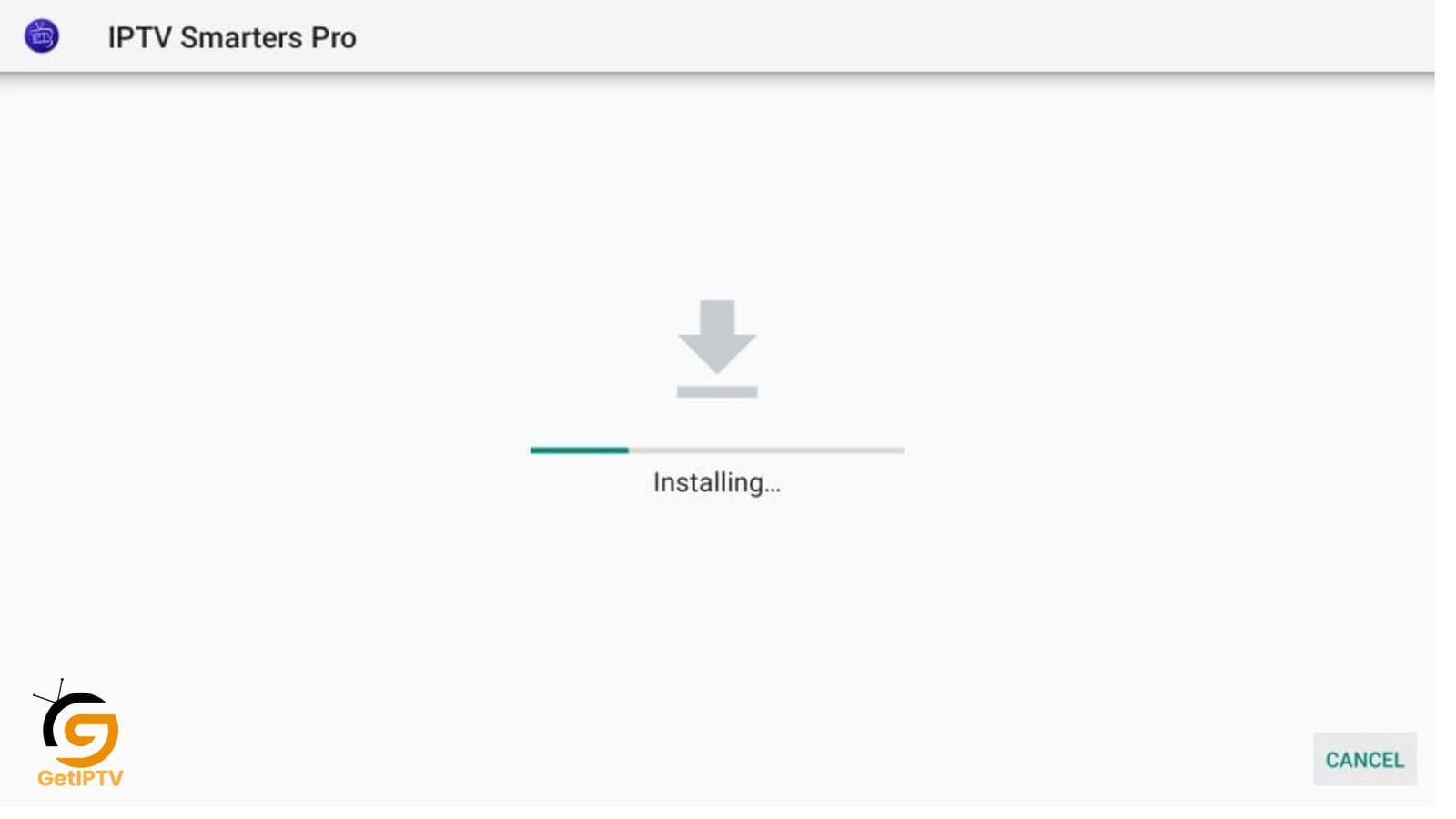
5. Wait for the installation to finish.
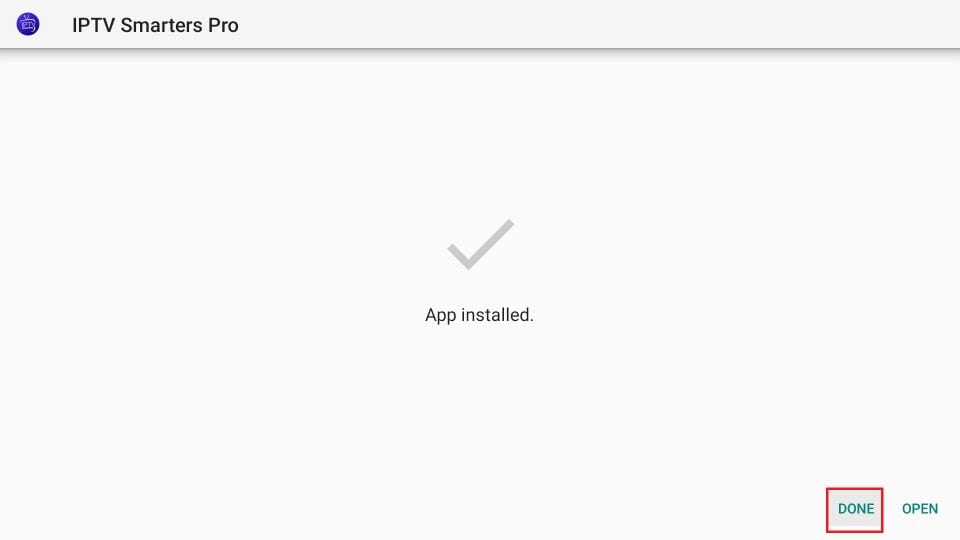
6. The installation is concluded, and the app installation notification appears. You may now click OPEN to start using IPTV Smarters. I recommend selecting DONE to delete the APK file and free up space on the TV storage.
7. If you click DONE above, you will return to the Downloader interface. Click Delete.
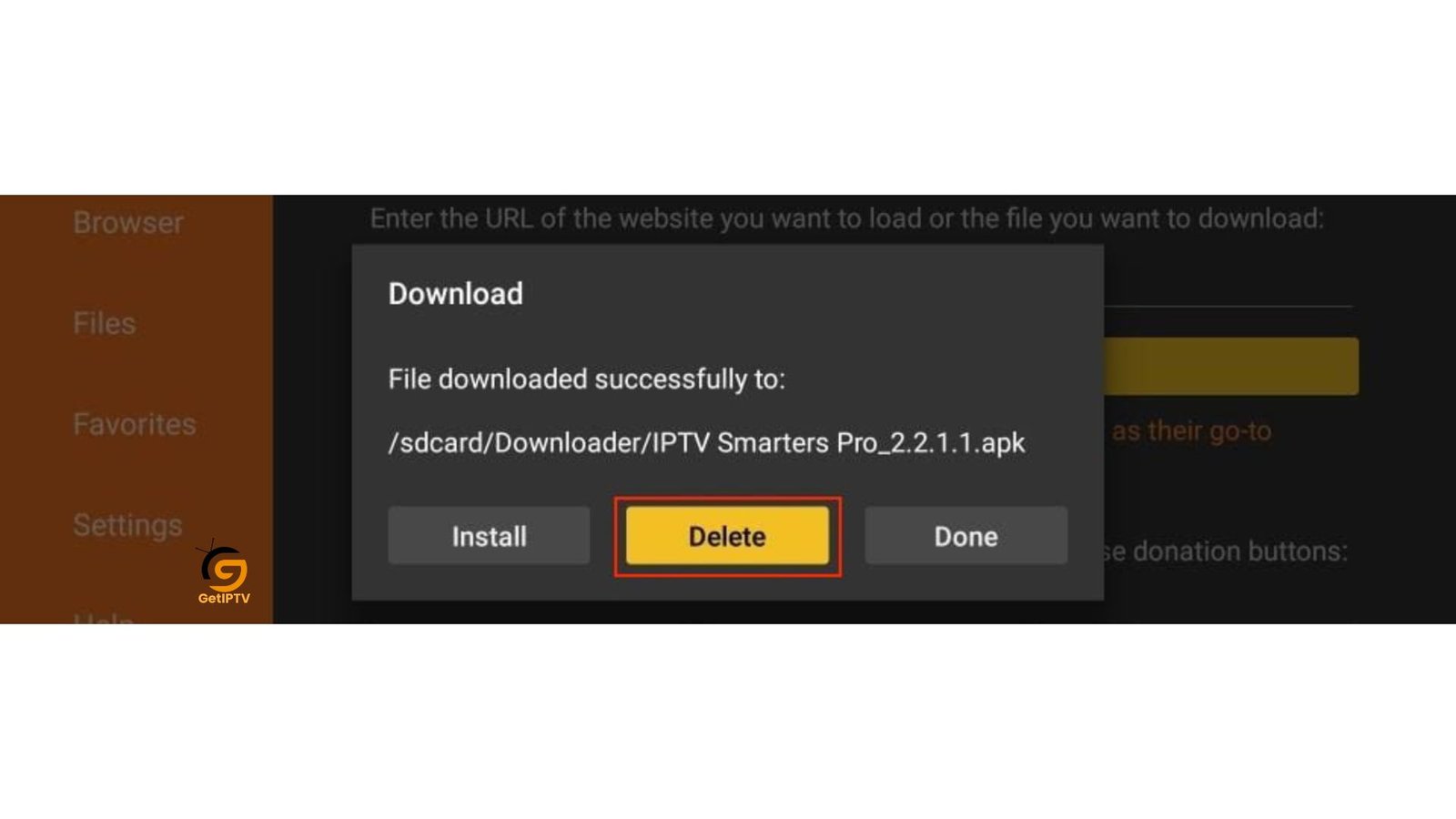
8. Again, click Delete.
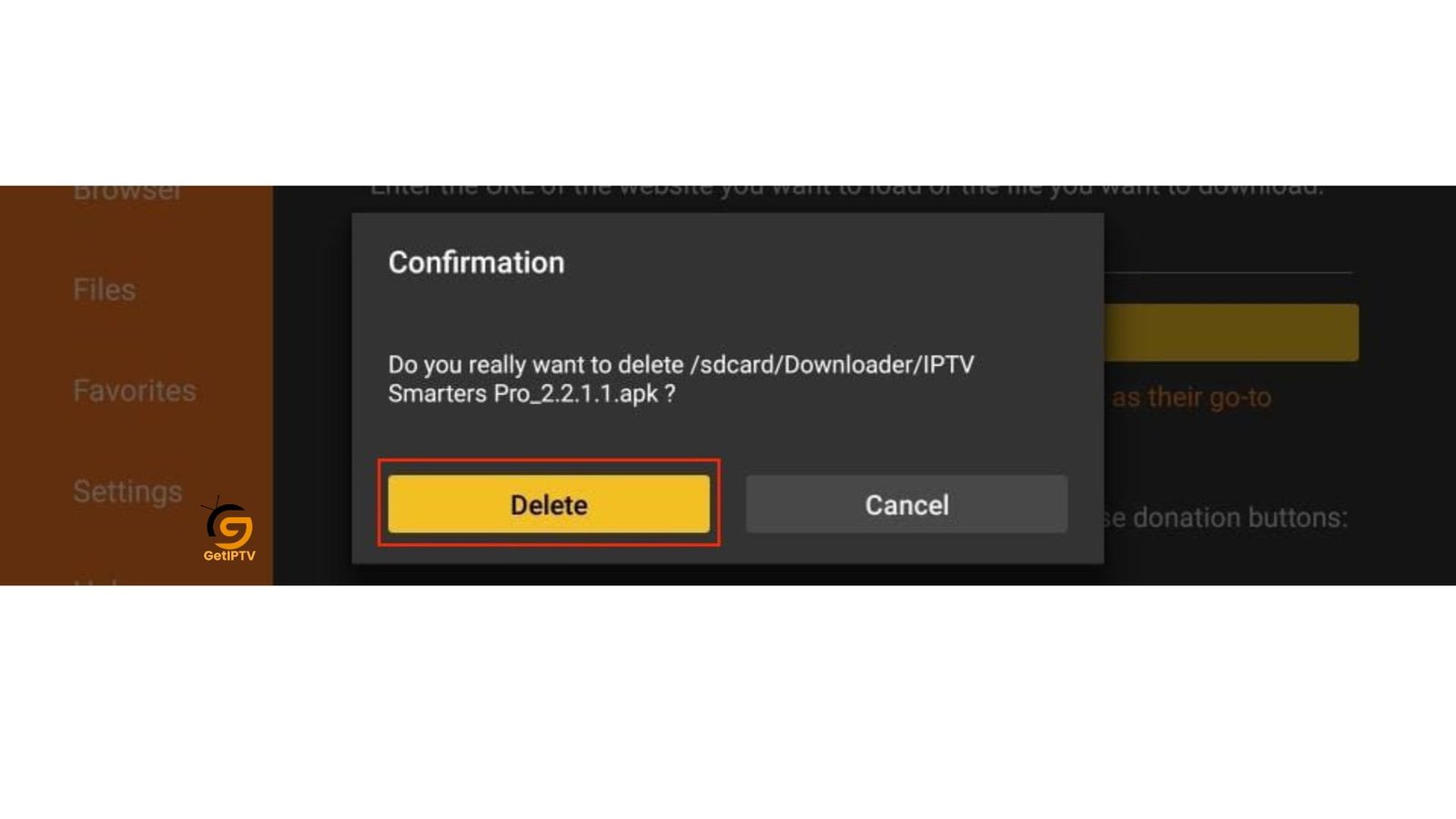
You now have the IPTV Smarters app on TV.
You’re now all set. A quick reminder: your internet provider and many websites/apps can see
How to Add an IPTV Subscription
Step 1 — Open Smarters Pro
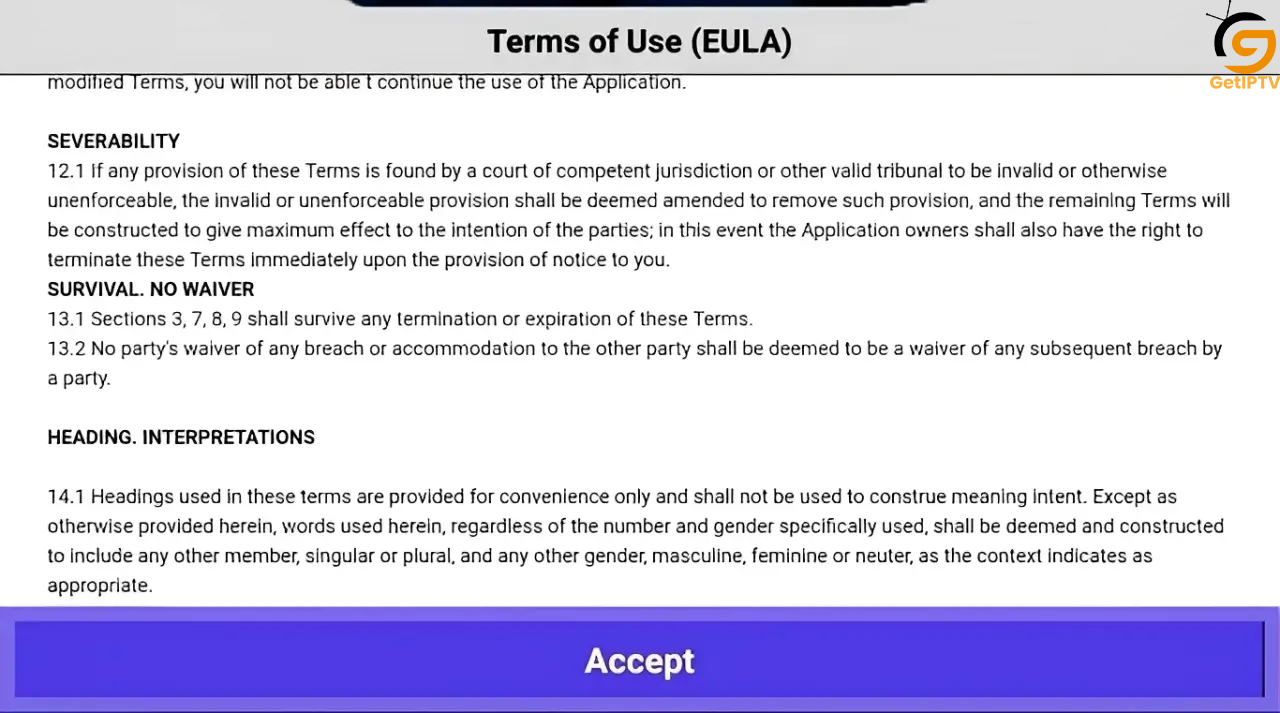
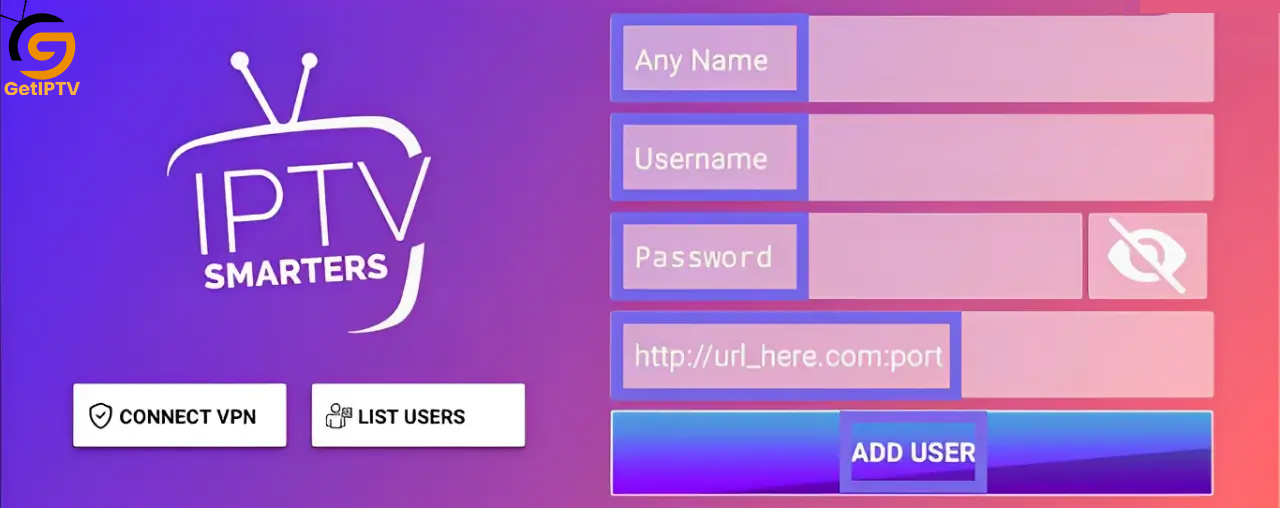
Step 2— Tap “Add Playlist” or “Xtream Codes Login”
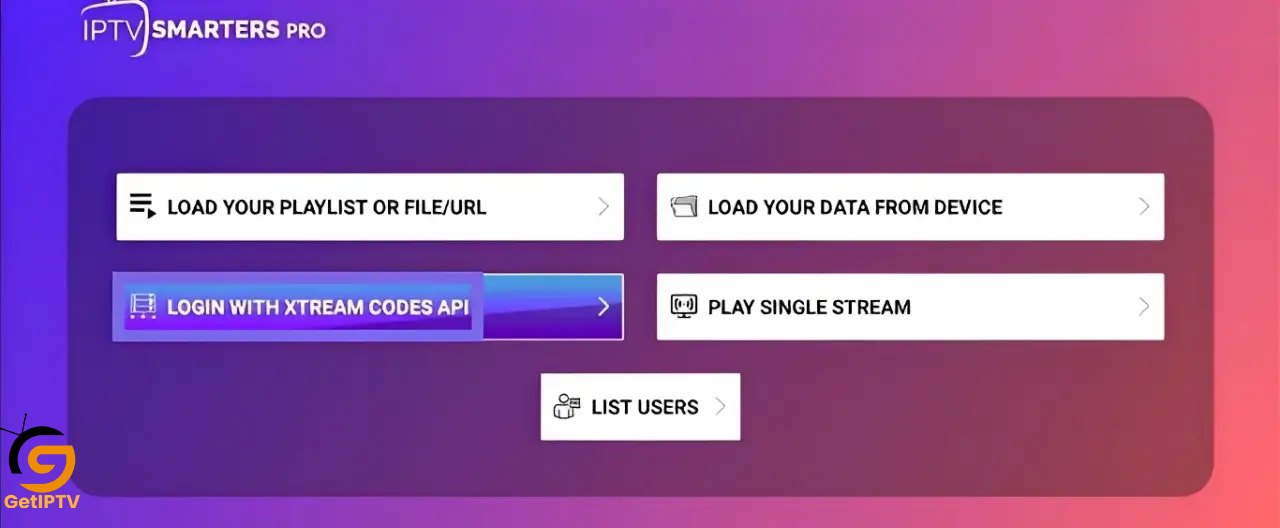
Step 3 — Enter IPTV Credentials
Username
Password
- Server URL
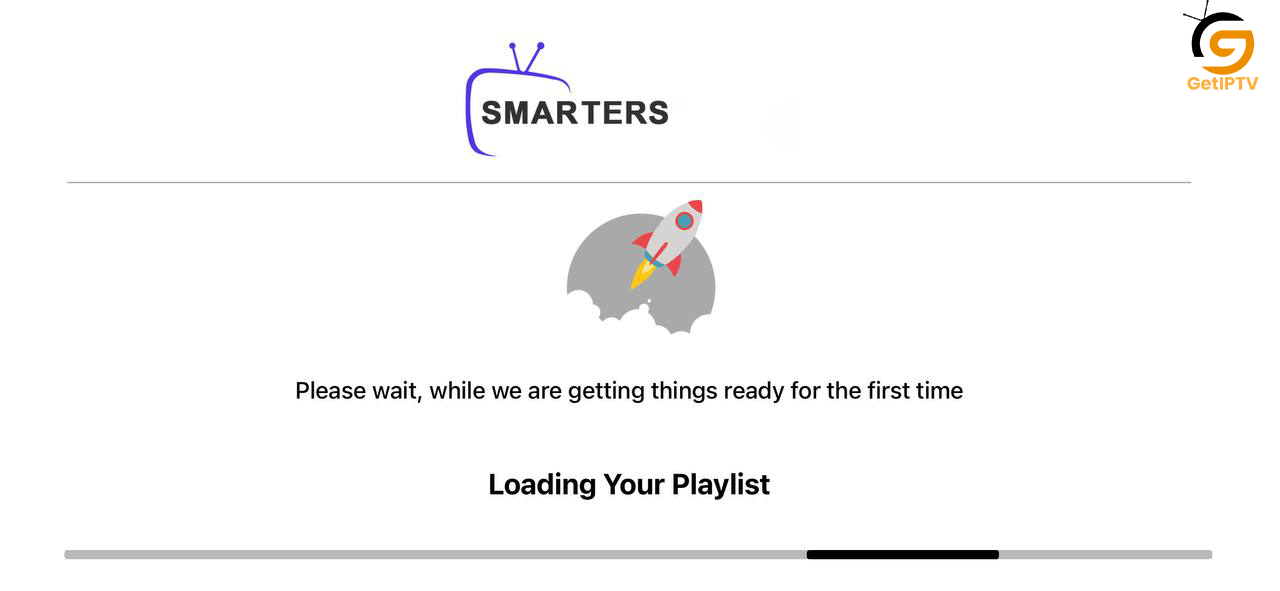
Step 4 — Confirm and Load Channels
Get Your Smarters Pro IPTV Subscription
Start streaming live TV, movies, and series instantly on any device.
FAQs — Smarters Pro IPTV App
1. Is Smarters Pro free?
The app itself is free to download, but you need an IPTV subscription to watch channels. Some providers offer a free trial.
2. Which devices support Smarters Pro?
Phones, tablets, Android TV boxes, Smart TVs running Android TV, and even PCs with an Android emulator.
3. Can I watch in 4K?
Yes! Smarters Pro supports HD, FHD, and 4K streaming depending on your device and internet speed.
4. How do I add my IPTV subscription?
Open the app, tap “Add Playlist” or “Xtream Codes Login,” enter your username, password, and server URL, then save.
5. Does Smarters Pro support movies and series?
Yes, it supports VOD (Video on Demand) content, so you can watch movies and TV series anytime.
6. How do I improve streaming performance?
Use 5GHz WiFi or Ethernet, close background apps, clear cache, and keep the app updated.
Conclusion
The Smarters Pro IPTV app is one of the best IPTV players I’ve ever used. It’s fast, stable, and beginner-friendly. Installation is simple, and it works across TVs, phones, tablets, and PCs. If you want to watch live TV online, enjoy movies, and access VOD content, Smarters Pro is the ideal solution.
Start using Smarters Pro IPTV app today and enjoy a smooth, reliable IPTV experience!