If you want to install third-party apps on your Fire TV Stick, Fire TV Cube, or Fire TV Smart TV, you need to enable apps from unknown sources. This guide walks you through the process with clear steps and helpful images.
Step 1: Open Fire TV Settings
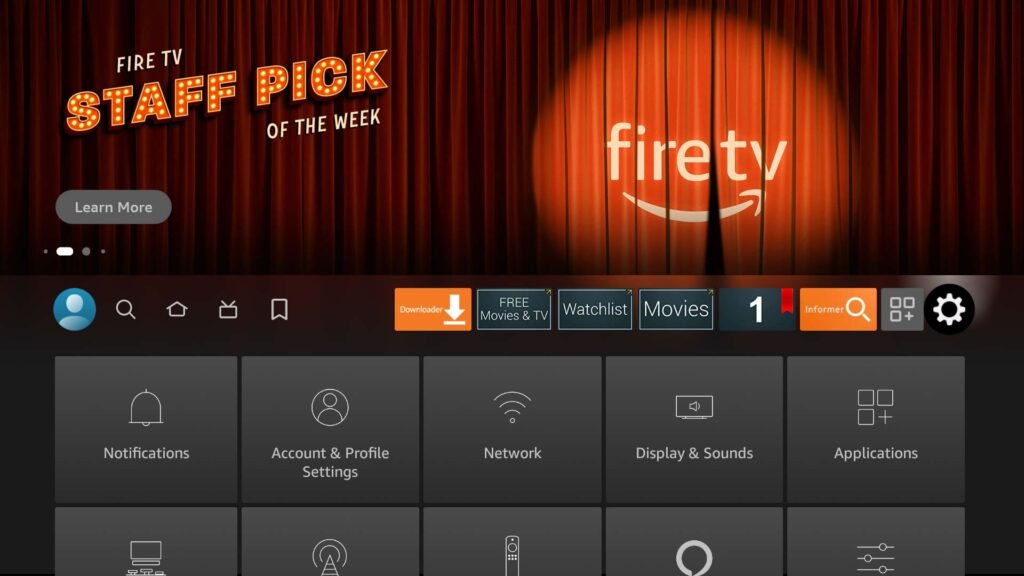
From the Fire TV home screen , scroll to Settings, which is the gear icon on the far right of the main navigation menu.
Step 2: Select Device Menu
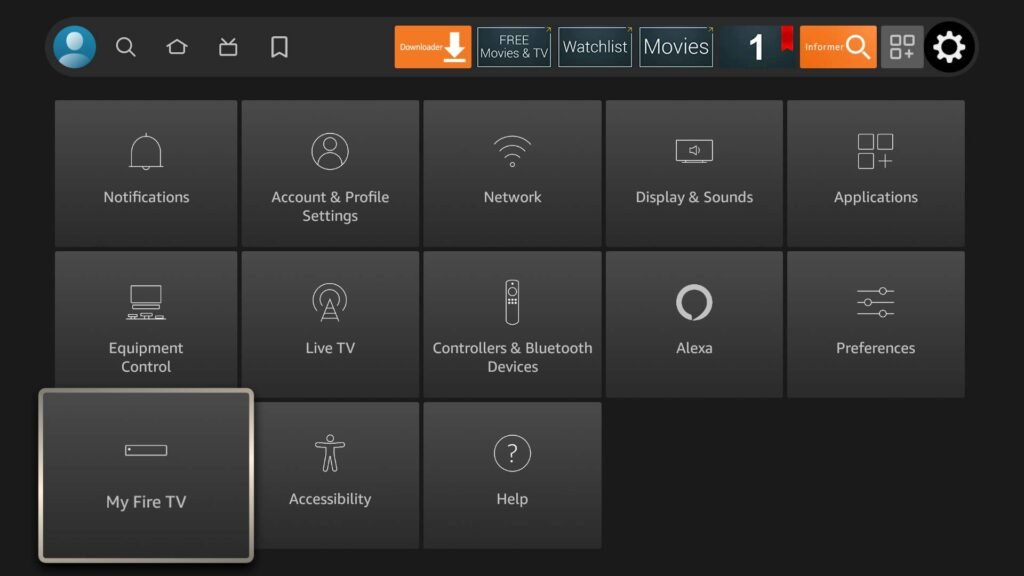
Scroll down and select:
- “My Fire TV” if you are using a Fire TV Stick or Fire TV Cube
- “Device & Software” if you are using a Fire TV Smart TV
Step 3: Open Developer Options
Select the “Developer options” menu.
⚠️ If “Developer options” is missing, follow this guide to reveal it before continuing.
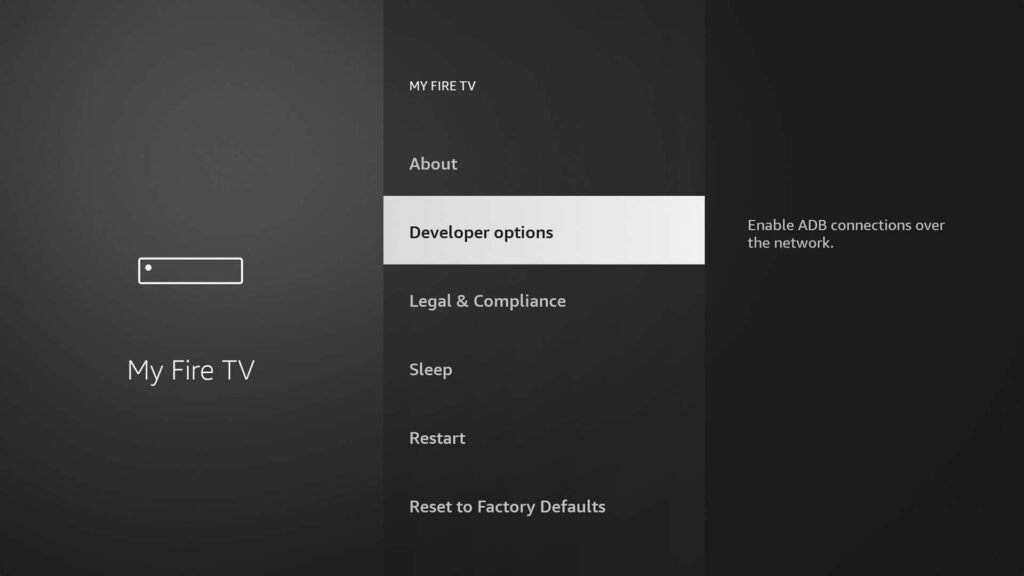
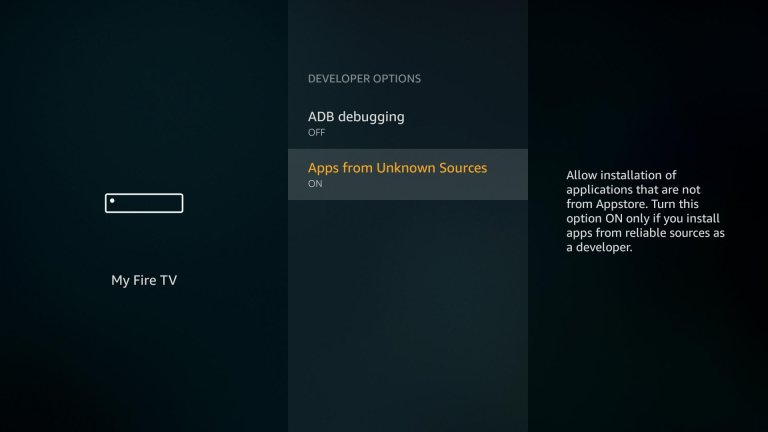
Step 4: Enable Apps from Unknown Sources
Check the bottom option:
- If it says “Apps from Unknown Sources”, select it to turn it ON and you’re done.
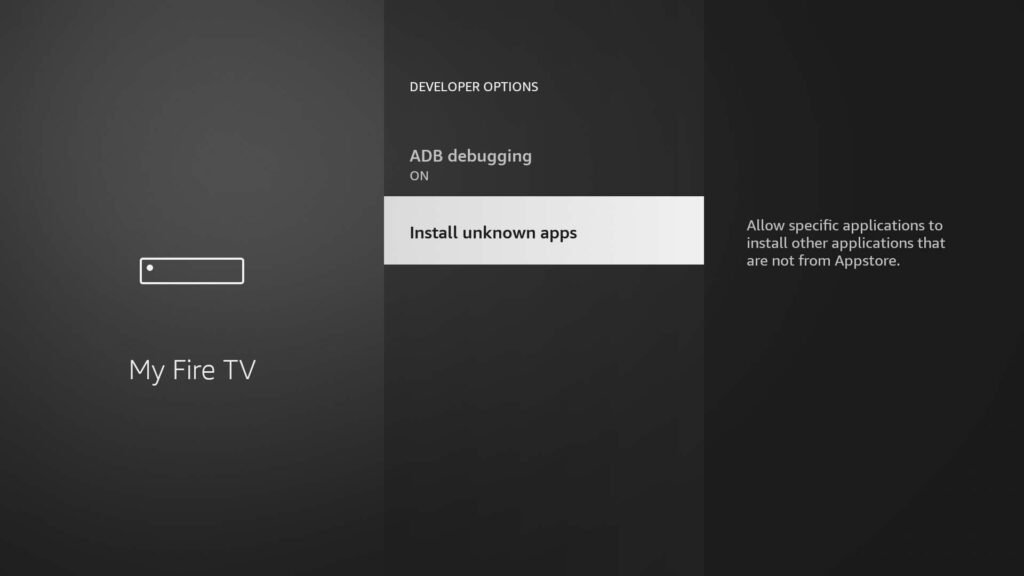
- If it says “Install unknown apps”, proceed to the next step.
Step 5: Install Unknown Apps
Select the “Install unknown apps” option.
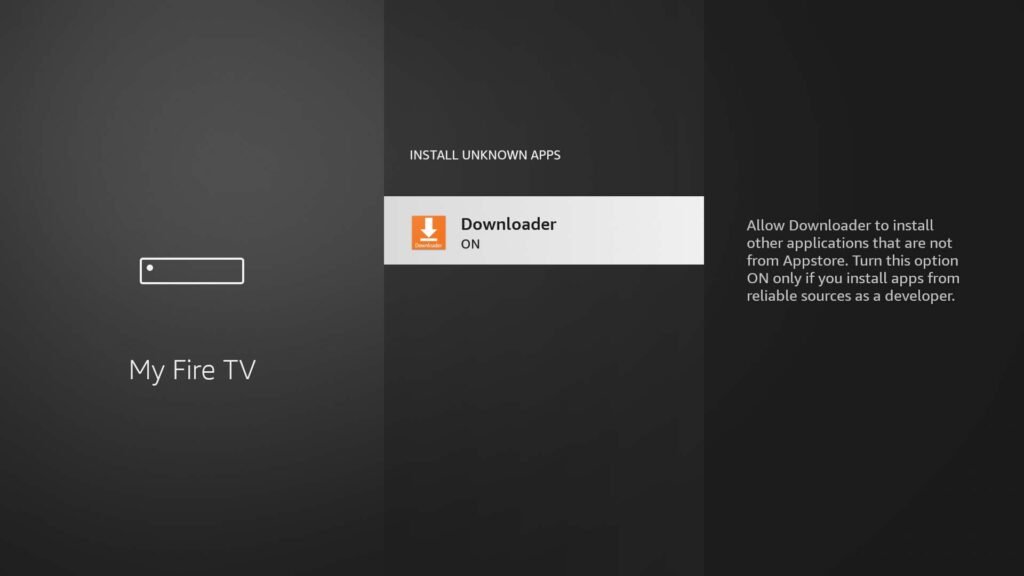
Step 6: Allow Installation for Specific Apps
Choose the app you want to allow installation from, such as Downloader. This enables the app to install APK files on your Fire TV.
Conclusion
That’s it! You’ve successfully enabled apps from unknown sources on your Fire TV. Now you can safely install third-party apps and enjoy all your favorite IPTV services, streaming apps, and more.
Tip: Always download apps from trusted sources to avoid security risks.