
Everything you need to set up IPTV the right way. This guide hub collects step-by-step tutorials for the most popular IPTV players and every device people use them on — smart TVs, phones, tablets, and computers. Pick an app or a device below and follow the linked tutorial.
IPTV Apps & Players: Setup Guides
IBO Player Setup
The IBO Player is one of the most used IPTV players on smart TVs and Fire TV devices. Installation takes a few minutes: download the app, note the MAC address shown on screen, and add your playlist from the activation page. For the complete walkthrough, device fixes, and common errors, read our IBO Player honest guide.
IPTV Smarters Pro Setup
IPTV Smarters Pro runs on Fire TV, Android TV, phones, tablets, and Windows. After installing the app you simply choose Login with Xtream Codes API, enter the server, username, and password from your provider, and the channel list loads automatically.
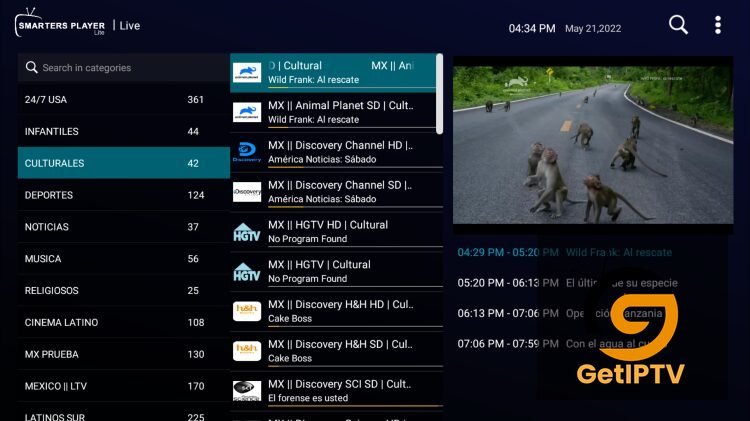
Follow the full tutorial: how to install Smarters Pro for IPTV.
TiviMate IPTV Player
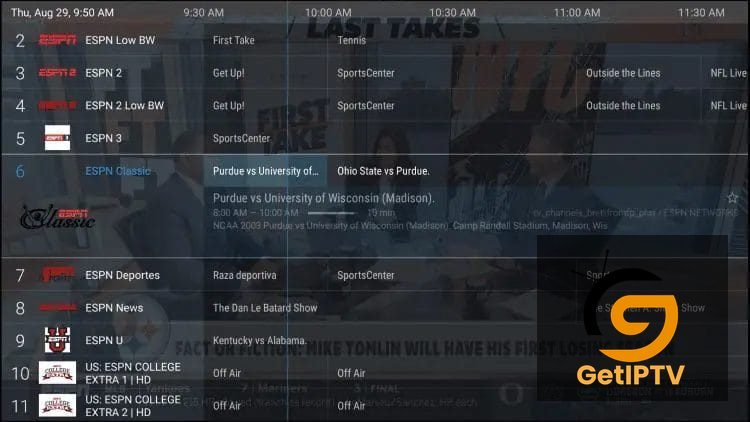
TiviMate is a favorite on Android TV and Fire TV because of its clean TV-guide style interface. To set it up, install TiviMate from the Google Play Store (on Fire TV, sideload it with Downloader), open Add playlist, and enter your Xtream Codes details or M3U URL. Once loaded, enable the EPG (TV guide) and group channels into favorites for quick access.
VLC for IPTV
VLC is the simplest option when you already have an M3U link — it is free and works on Windows, Mac, Android, and iOS. Open VLC, go to Media → Open Network Stream, paste your M3U URL, and press Play. The full channel list is then saved under Playlists so you can reopen it with one click.
IPTV Setup by Device
Smart TV & Fire TV Stick
On a smart TV or Fire TV Stick, install a compatible player from the built-in app store (or sideload the APK with Downloader), then log in with your playlist details. Keep the app updated and use a wired connection or 5 GHz Wi-Fi for smooth playback.
Phone (Android & iPhone)
On Android, install an IPTV player from the Google Play Store. On iPhone, download a player from the App Store, then load your playlist URL or Xtream Codes login. Mobile data works, but Wi-Fi gives more stable streams.
Tablet
Tablets use exactly the same apps as phones, with a bigger screen for the TV guide. Install the player, add your playlist, and enable the EPG to browse channels in grid view.
PC (Windows & Mac)
On a computer you can use VLC directly, or a dedicated player such as IPTV Smarters for Windows. Open the M3U URL or sign in with Xtream Codes, then switch to fullscreen for a TV-like experience on your monitor.
Frequently Asked Questions
Is IPTV legal?
IPTV technology is legal. What matters is whether the content you stream is properly licensed — always verify your provider before subscribing.
Which IPTV player should I choose?
For Android TV and Fire TV, TiviMate or IBO Player; for phones and tablets, IPTV Smarters Pro; for a quick test on any device, VLC with an M3U link.
Why does my stream keep buffering?
Most buffering comes from a slow connection or an overloaded server. Use at least 15 Mbps for HD, prefer 5 GHz Wi-Fi or Ethernet, and close background downloads.
Do I need a different app for each device?
No. Most players exist on several platforms, and your same playlist or Xtream Codes login works on every device you own.
Ready to test everything above? Get your 24-hour free trial or browse the latest IPTV guides on the blog.