
The operating system matters more than the screen size
Find the exact TV model before you search
When people search for the best IPTV apps for Smart TV, they often expect one app to install on every television. Smart TVs run different operating systems. Samsung models commonly use Tizen, LG televisions use webOS, and many other sets use Android TV or Google TV. App availability also depends on model year, region and current software. A guide for one system may not apply to another.
First find the full model number in the TV settings or on its label. Open the manufacturer’s app store on that exact television and search for the app and publisher. A search-engine result does not guarantee that a listing exists in your country. If the app is absent, ask the publisher about compatible alternatives instead of installing unknown files or changing device security settings. For general setup principles, browse our IPTV app and device guides.
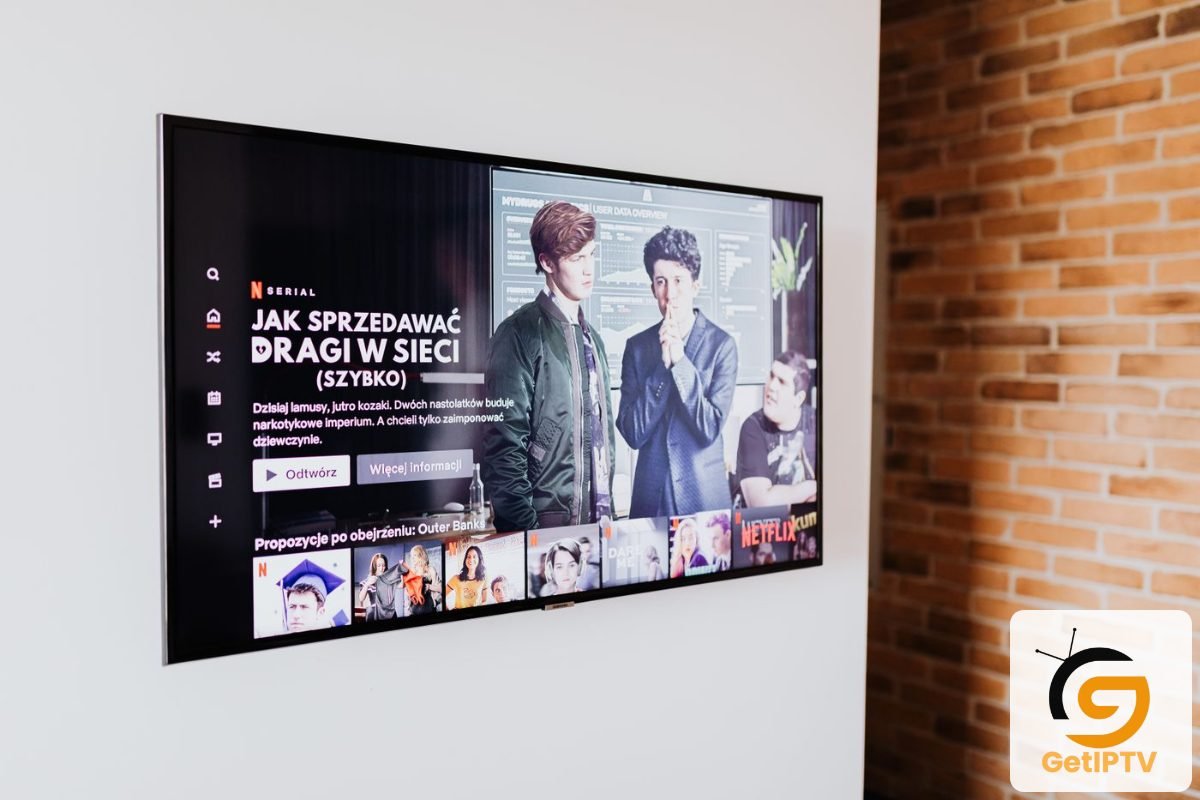
Samsung Tizen and LG webOS app checks
Use the store on the television
For Samsung and LG televisions, use the app store built into the TV and check its listed supported models. A phone app with the same logo may not be available for Tizen or webOS. Confirm whether an app requires activation, a device identifier or a separate account. Review the privacy statement and find a real support contact before sharing a TV ID or paying.
Do not confuse a media player with a subscription. An IPTV app may load a user-supplied playlist but not provide channels, programmes or permission to access them. Use a licensed source. If a seller promises that an app unlocks every paid channel, verify what you are buying and who owns the distribution rights. Keep the app store receipt and cancellation information if you enable a trial.
Android TV and Google TV have different app choices
Verify app support for the actual model
Android TV and Google TV can offer broader player selection, but device specifications still vary. Verify the app’s current listing for the exact television or box, check remote support and make sure you have sufficient storage. A package for an Android phone is not automatically a safe TV installation. Use trusted stores and official publisher links; avoid unofficial APK pages and builds advertised as “unlocked.”
For a living-room interface, test focus navigation, screen text, guide visibility, subtitles and audio selection. A player that is comfortable on a phone may be frustrating from a couch. If you also use a streaming stick, remember that the stick’s system is separate from the television’s native app store. Confirm the model and supported app version for each device.
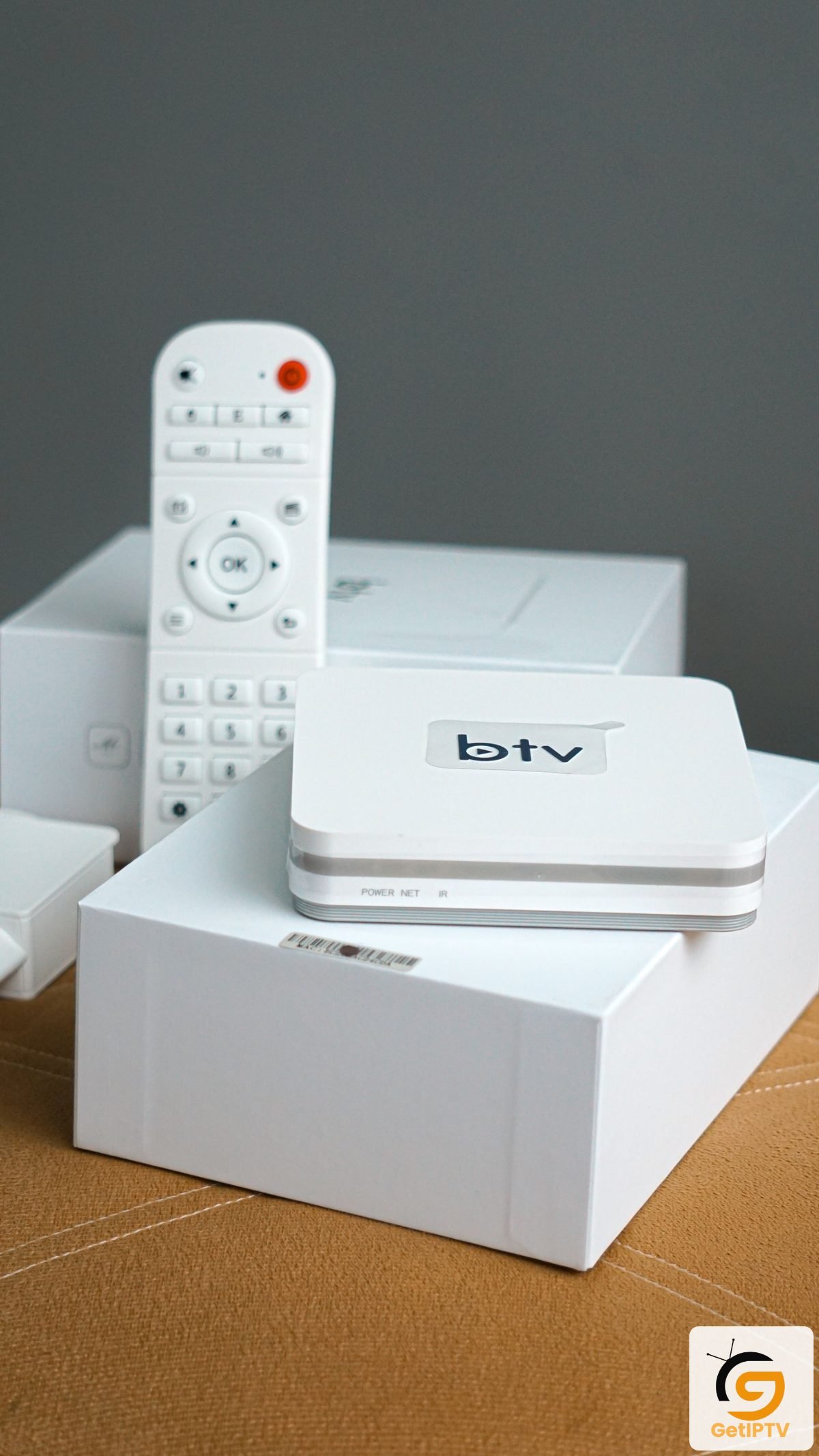
NET IPTV and other named apps: verify current support
Compare the specific publisher and platform
NET IPTV publishes setup information for Smart TVs and other devices. Check its current supported model list and activation terms rather than assuming every Samsung or LG set is covered. The NET IPTV website and app are separate from the content provider supplying any playlist. Ask how playlist removal works if you stop using the player and whether activation is paid or time-limited.
Other products on your list are distinct too: Bob Player, MaxPlayer, Sparkle, Smarters material and IPTV Smarters Pro material should each be verified at the app listing and publisher site. Similar names or shared feature claims do not prove common ownership. Compare compatibility, privacy, fee, support and playlist input separately.
A careful Smart TV installation process
Install from a trusted store
Write down the television model, OS version, country or app-store region, and the exact app developer. Install only from the TV’s trusted app store unless the verified publisher and manufacturer document another supported method. Read the permissions and privacy notice. If the instructions ask you to disable protections or install a file from a short link, stop until you can verify the source.
After installation, open the player without entering credentials and inspect the available screens. Confirm the provider’s authorized connection format before configuring it. Use a private M3U URL or provider login only from a service you have permission to use. Keep the login out of photos and messages. When finished, enable device lock or profile controls where available, and remove the app if its source or behaviour seems suspicious.
Picture, sound and accessibility settings
Test the full audio and video path
Player choice is only one part of viewing quality. Check the TV’s display mode, motion settings, audio output, subtitles and accessibility features before blaming the app. A low-bitrate or compressed stream may look soft on a large screen even if the television is capable of 4K. The resolution advertised by the source must be supported by the app, device, network and display end to end.
Test with a permitted stream and change one setting at a time. If dialogue is quiet, confirm audio track and TV output. If captions are missing, ask whether the source includes subtitles and whether the player supports them. If menus are too small, look for zoom, font or display preferences in the app or TV. Save the original values so a troubleshooting change can be reversed.
Privacy and app permissions on a shared TV
Protect profiles in a shared household
Televisions are often shared by a household, so consider who can open profiles and view recent content. Review whether the app stores credentials locally, synchronizes data, or uses a device identifier. Avoid signing into a player with an account you reuse elsewhere. Keep the TV system updated and remove apps no longer used. A remote support agent should not ask you to reveal passwords or install remote-control software without a verified reason.
Use parental controls if they suit your household, but understand what the feature actually locks. Keep billing in the trusted store and check how subscriptions cancel. If you enter a playlist into a public or borrowed television, remove it when you finish and ask the service to rotate credentials if you think they were exposed.
Troubleshooting Smart TV app availability
Plan for app changes and the TV lifecycle
If an app cannot be found, verify spelling, device region, model year and app-store region. Check for system updates, but do not factory-reset a television just to chase an unverified app. If an app installs but refuses to open, restart the TV, check free storage and contact the app publisher with the model and version. If a playlist alone fails, confirm the source is active and supported before reinstalling the player.
Our Smarters installation guide and broader device pages can help explain general player setup. For comparisons across brands and devices, see IPTV Players. Always return to the publisher’s current listing for final compatibility details. Smart TV app catalogues change, so an old tutorial or product review should not be treated as a current availability guarantee.
Plan for app changes and the TV lifecycle
Save the model number and the publisher support URL somewhere you can access without the television. If a software update removes an app or changes its menus, check the platform store and support notes before attempting a reset. Consider whether the TV’s built-in app store receives security updates; older televisions may need a currently supported external device for ordinary, licensed apps. Do not buy a replacement player solely because one service’s marketing page claims a universal fix. Compare the whole setup, including accessibility, remote comfort, privacy, and ongoing support.