
A safe starting point for IPTV on Firestick
What a Firestick IPTV setup includes
Searching for an IPTV on Firestick setup often leads to instructions that assume every Fire TV model and app works the same way. They do not. Fire TV generations, software versions, regions and app-store availability can differ, and the setup process changes over time. Start by identifying the exact model in Settings, checking its current software version, and deciding which lawful media source you intend to use. This guide is educational; it does not provide playlists, channel access, unofficial APK files or advice to bypass device protections.
An IPTV player is an app that organizes and plays a compatible playlist. It is not necessarily a TV service and does not grant rights to programmes. Only connect sources that you are authorized to access. For official model details, consult Amazon’s Fire TV device specifications and its Fire TV setup instructions. The user-provided NET IPTV Firestick page and Smarters Firestick guide can be read as third-party sources, not as a substitute for checking the actual app publisher and Amazon’s current policies.
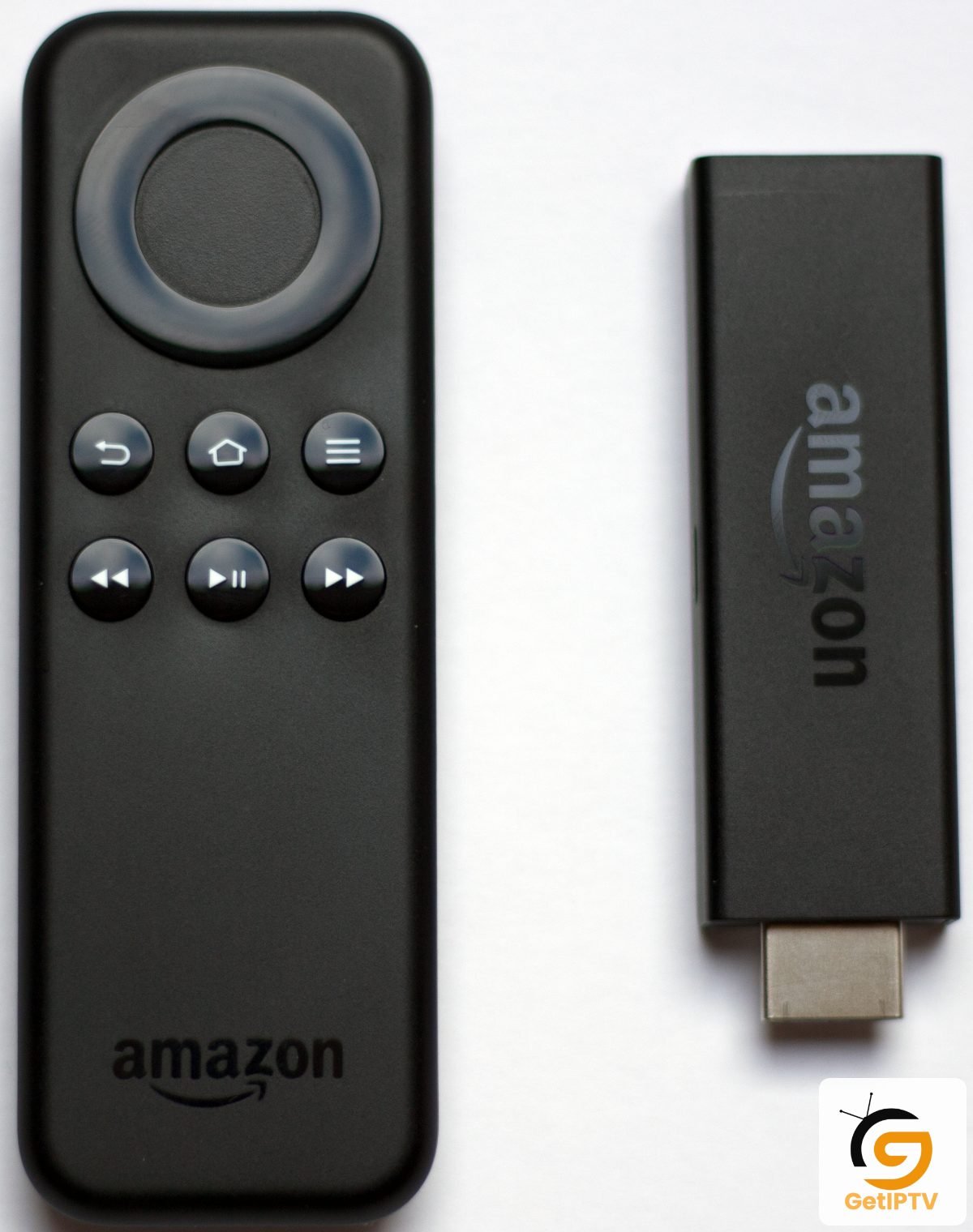

Confirm which Fire TV model and apps are supported
Identify the generation and app listing
Before installing anything, record the device model, generation, operating-system version, available storage, and the TV resolution you use. Then search the Amazon Appstore directly on that Fire TV for the exact app name and developer. Similar names may refer to different apps, so compare the publisher identity, privacy notice, requested permissions, update date and supported devices. A result in a web search does not prove that the app is available in your region or for your model.
Amazon publishes specifications for Fire TV devices, but app eligibility is determined by the app’s publisher and store listing. Do not assume a package intended for Android phones can safely be installed on Fire TV. If a third-party guide asks you to disable security protections, download an APK from a file host, or enter account details into an unfamiliar activation portal, stop and verify with the app publisher first. A missing store listing may simply mean the app does not support your particular device.
Install from a trusted source and protect the device
Keep installation inside trusted channels
Prefer the app store built into the device or a verified publisher download route that explicitly lists your model. Review the app’s privacy disclosures before accepting permissions. A media player generally should not need unrelated access such as contacts or SMS. Keep Fire OS updated, use a strong Amazon account password, and avoid leaving account sessions active on devices used by guests.
Some online tutorials recommend enabling unknown-source installation. This can increase malware and credential-theft risk, and the available Fire TV settings change between versions. Do not switch off protections just to follow an old video or a reseller’s message. If you have a legitimate need for an app that is unavailable in the store, consult current official device documentation and the publisher’s own support channel. Never install modified “premium” builds, cracked apps, or files sent through private chat. For a broader beginner overview, our IPTV setup guide collection includes device and app basics.
Connect only an authorized playlist or account
Keep playlist credentials private
After launching a compatible player, choose the connection method supplied by your lawful service. Common methods include an M3U playlist URL or a provider login format supported by the app. Enter the details exactly as issued; do not guess server addresses or copy codes from public forums. Playlist URLs can contain usernames, passwords or tokens, so treat the full URL like a password. Avoid screenshots that expose it, do not paste it into comments, and do not share it with an unofficial “activation” agent.
Players such as Bob Player describe user-supplied playlist workflows on their own site, while smarters.com.co publishes separate setup material. These names and sites are not automatically the same publisher. Confirm the app and its instructions independently. If you suspect a playlist has leaked, contact the authorized source to rotate or revoke the credential before trying more troubleshooting steps.
Set up the screen for a television and remote
Test guide readability and remote navigation
Once the playlist loads, check that the text is readable from your usual viewing distance and that the remote can move through menus without awkward repeated presses. Add only a few favourites at first. If the app offers guide refresh or a time-zone choice, verify the device clock and use the information supplied by your content source. Electronic programme guide data cannot be created by the player if the source does not include it.
Check playback with a permitted stream before changing picture or buffer settings. Your TV’s supported resolution, the source’s actual encoding and your network all affect picture quality. A “4K” word in an app title does not make every channel 4K. Avoid changing several advanced settings at once; record the initial values so you can undo a change that makes playback worse. A good setup is one you can explain and maintain, not one with every option enabled.
Troubleshoot common Fire TV setup failures
Diagnose installation and playback errors
If the app does not appear, verify the model, app spelling and publisher, then check the device’s store region and software update. If login fails, check for an extra space, old password or wrong server address and confirm the account with the provider. If the app opens but the playlist is blank, confirm that the source remains active and supports the selected format. Do not repeatedly forward credentials to support addresses you cannot verify.
If playback buffers, use the steps in our setup troubleshooting material: restart the app, check Wi-Fi strength, pause other heavy downloads, and compare a lawful stream on another device or network if permitted. Note the time, error text, device model and app version. That record helps determine whether the issue follows the connection, the source or only one player.
Privacy and household controls
Protect shared profiles and account access
Review who can access the Fire TV profile and any playlist saved in the player. Use device PIN controls where appropriate, keep payment information inside trusted stores, and sign out of accounts before selling or gifting the device. A provider or app support representative should not ask for your Amazon password, banking one-time code or remote access to your personal computer. Never share those secrets.
Parents and shared households should also look for app-level content restrictions and understand their limits. A PIN may protect a menu but cannot make unauthorized content lawful or prevent every user from changing device settings. If you store a service login in an app, check the service’s rules on simultaneous streams and registered devices. Remove profiles you no longer use and request a credential reset if the device is lost.
Quick checklist before you finish
Confirm compatibility, lawful source and support
Before calling the setup complete, confirm five things: the Fire TV model is supported; the app came from a trusted source; its publisher and privacy terms are clear; the playlist belongs to a service you are authorized to use; and the remote, guide and playback behave as expected. Save the official support address and keep a private copy of your own account details. Recheck app availability after device updates rather than relying on screenshots from an older guide.
For additional app comparisons, see IPTV Players. The NET IPTV and Smarters links above may offer vendor-specific help, but remain independent claims to verify. Use Amazon’s device documentation for current Fire TV safety and platform details. If an offer promises unrestricted channels, demands security changes, or hides renewal terms, step away and choose a transparent, licensed service.